
Section Two: Configuring a DDSS archive index
In this final part of our workshop we will edit the PII index for our Credit Card transactions to assign the new DDSS archive to it.
Editing a Splunk Index for DDSS
- Splunk your Splunk console.
Click the Cog icon located near the top right-hand side. - Scroll down and
select Indexesunder the DATA section.
The indexes shown in the picture below maybe different to what you see depending on what part of the workshop you are doing in what order.
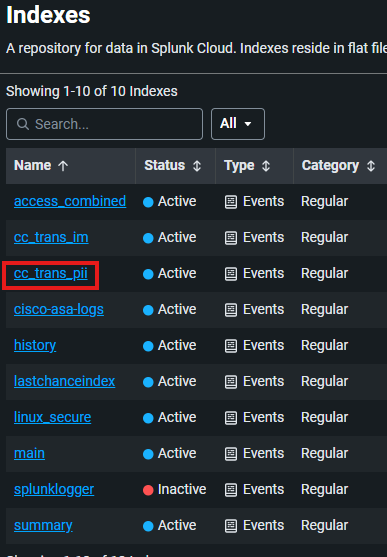
- We should see all of our indexes from the workshop here. Click the cc_trans_pii index as shown below:
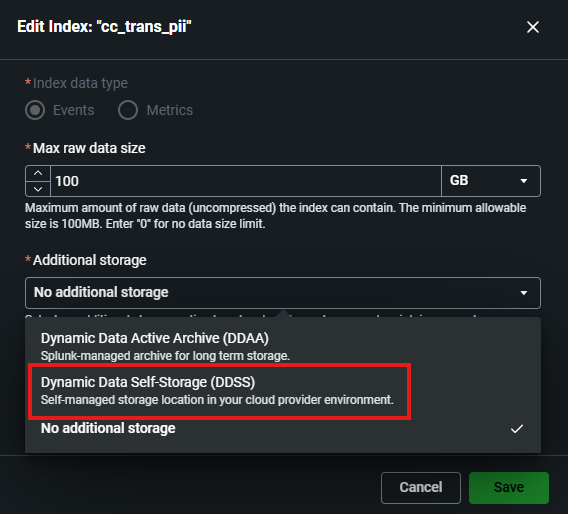
Modify the Max raw data size to be 100MB (**NOT**GB!)Click the drop down where it says additional storage.Select Dynamic Data Self-Storage (DDSS)option as shown below:
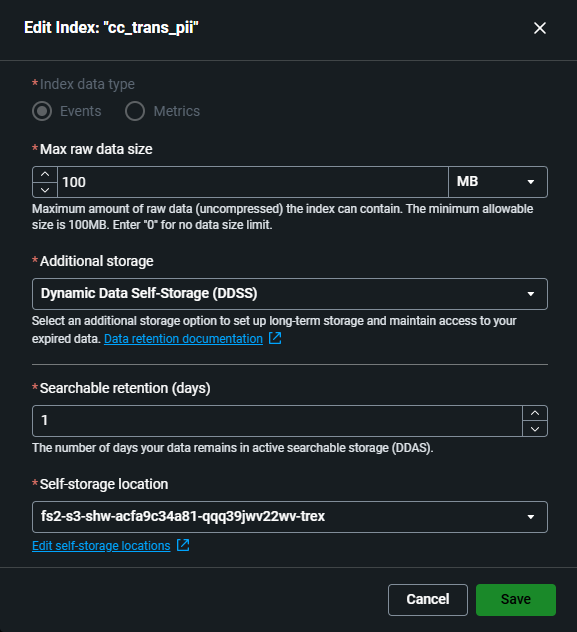
Change searchable days as 1Click the drop down under Self-storage location and select our new self storage location we created earlier.See example below:
Click Save when done.Click continue if prompted for updating index.
We should now see on the right hand side of our index the DDSS setup location showing. See example below:
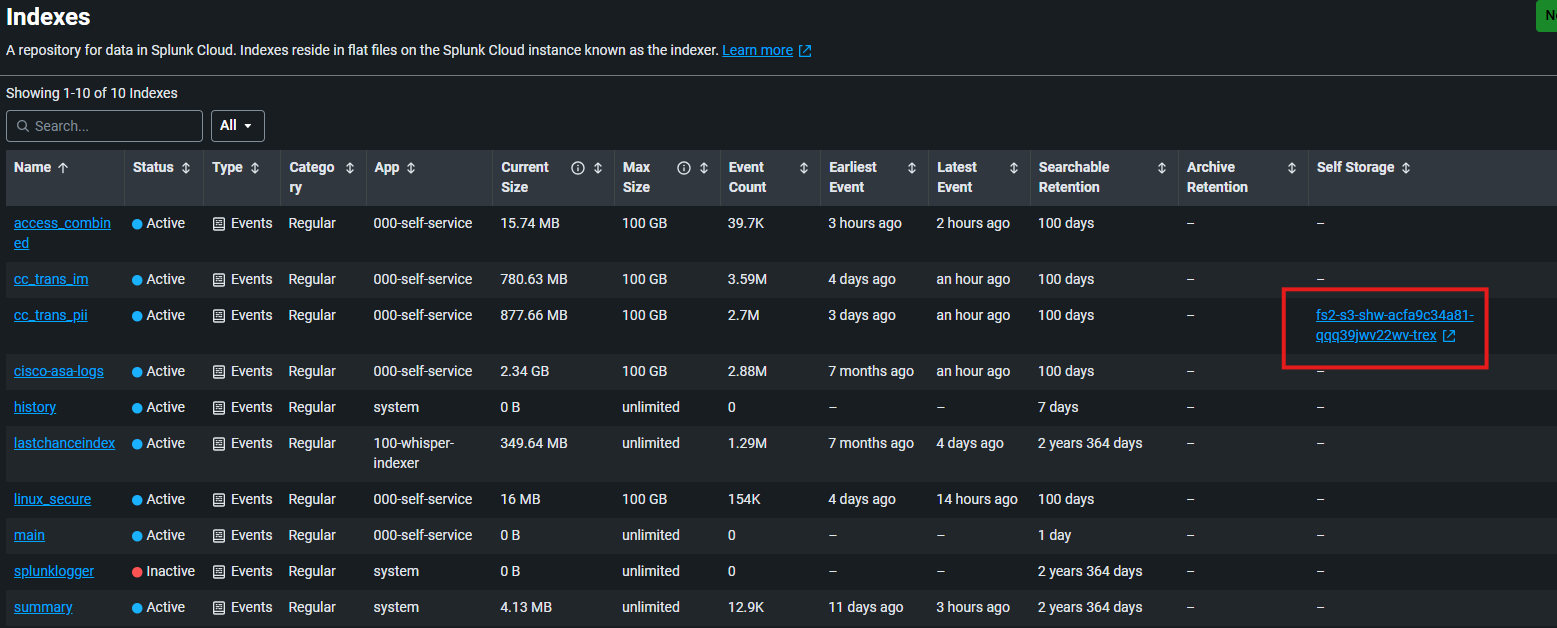
Just as a summary. We modified the index to route data to Splunk DDSS in Amazon S3 when it hits 100MB or 1 Day old. These are the smallest numbers Splunk will allow.
Unfortunately we cannot show you the live feed of archive working as we will have to wait a day for it to archive off. Feel free to set a reminder in your diary to check in around 24 hours. The labs usually last another 1 to 2 days after the workshop.
That is it! You have completed all of the labs. I hope you enjoyed your experience in getting your hands dirty with Cisco Data Fabric. Have a great day.