
To kick things off, let's explore our CloudFront distribution which was spun up as part of the workshop.
Explore CloudFront Log Setup
- From your AWS console search for and
select CloudFront

- Welcome to the CloudFront service. From here by default you should see the Distributions section of CloudFront. If not select
Distributionsfrom the left-hand menu. - You should see at least one distribution deployed as part of the workshop. You will note one has a description of Sample Web Application. Enter this distribution by
selecting the hyperlink IDfor it. See example image below.

- Feel free to explore the distribution configured as part of the workshop. When Ready
select the Logging tab.
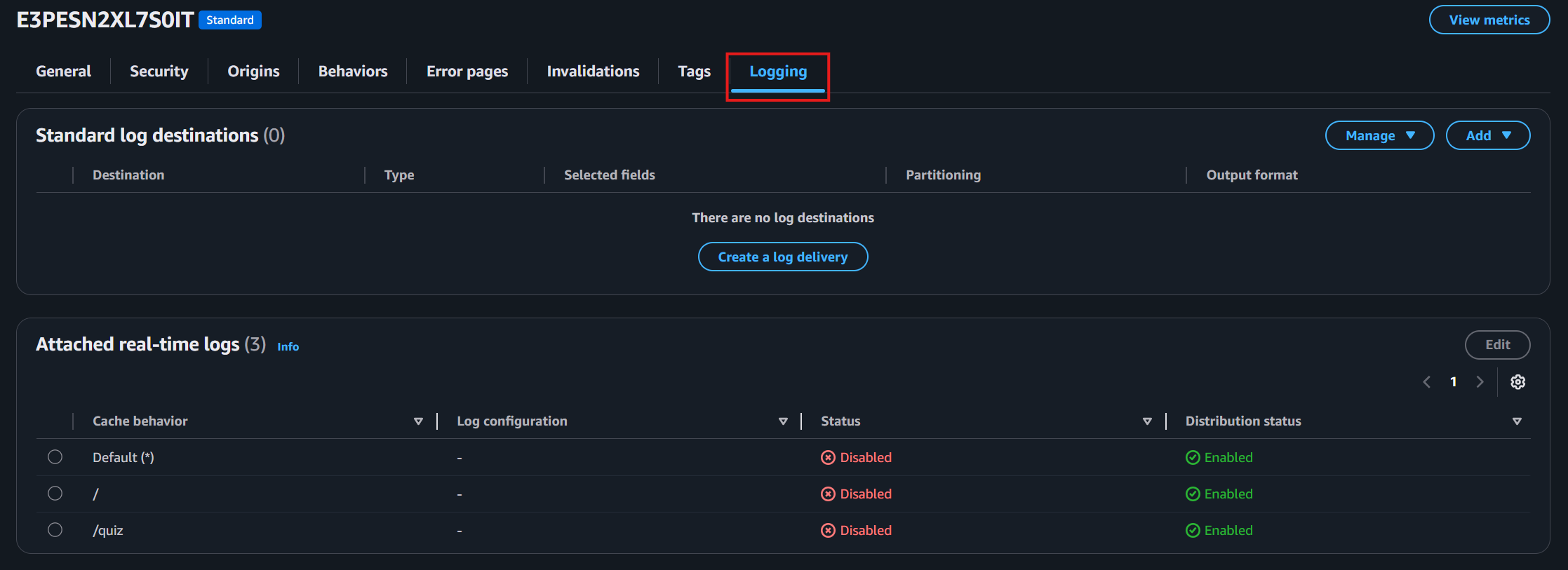
- From here you can see there is currently no standard log destinations configured. Let's create one by
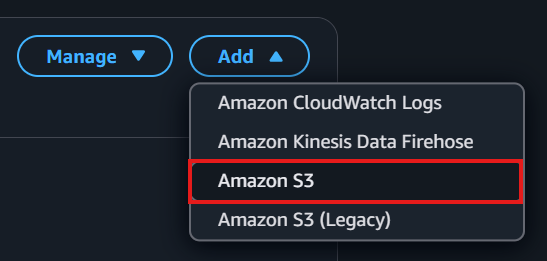
clicking the Adddropdown followed byAmazon S3as shown below
- In the Standard log destinations section,
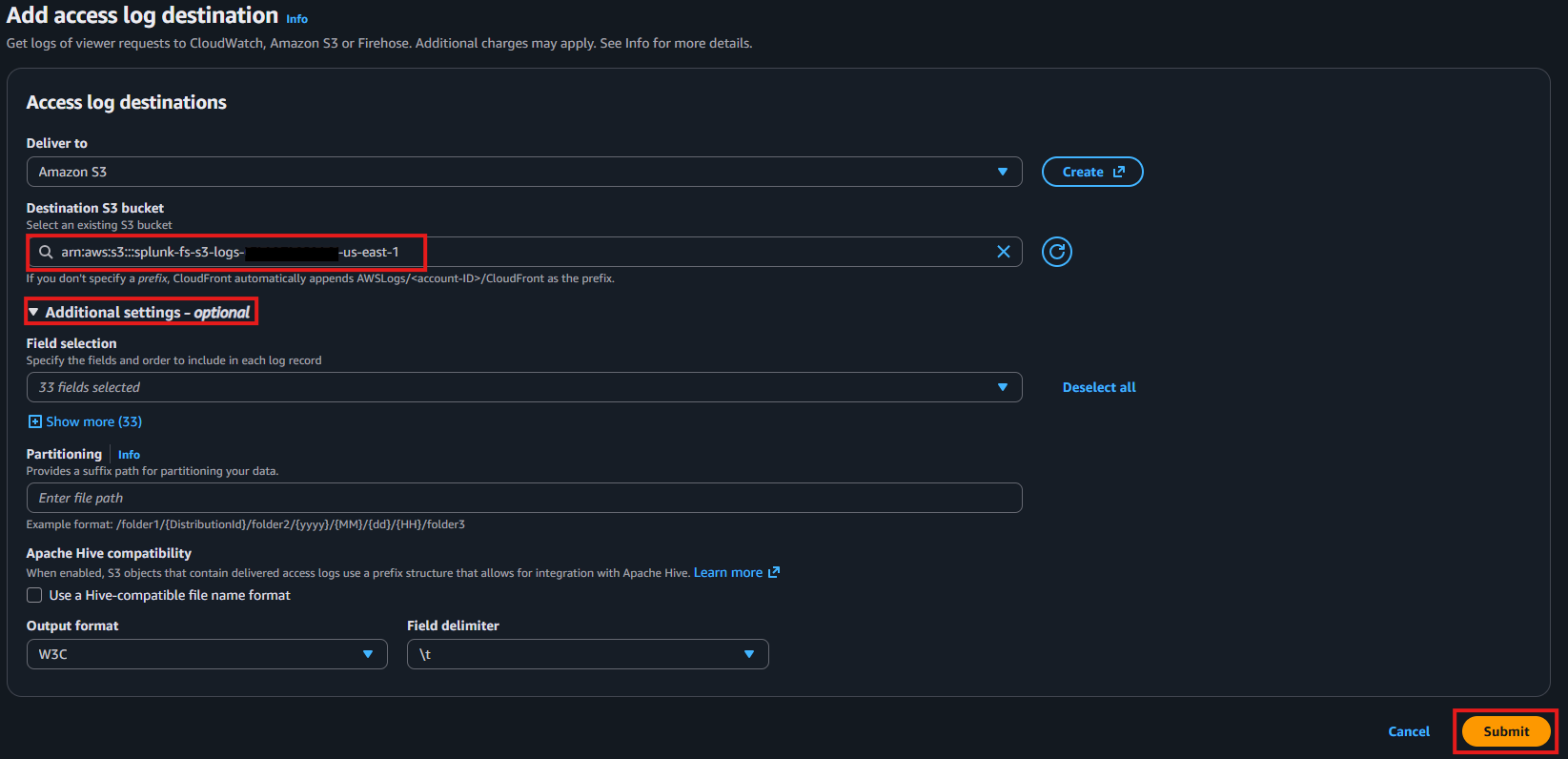
click the text which says Select a S3 bucket, this will show a drop down of all S3 buckets. - From the dropdown
select the bucket with the name of splunk-fs-s3-logs-{account-id}-{region}. - Next
Click the arrow for Additional settings - optional.
We will be leaving the remaining defaults, but you can see from the options below we have the ability to select different fields which will modify the log output format. We can also add folders for partitioning. This can be useful if you are wanting to search logs from different distributions or dates etc. Feel free to review these (without changing) before moving on.
- Leave all the remaining defaults and
click Submit.See example below.
Now the logging is enabled, feel free to have a read below some additional information on the CloudFront Access Logs S3 type shown in the logging tab.
- Destination: AWS Service where the logs are being shipped too. This can vary depending on selected type. For S3 it is the chosen S3 bucket.
- Type: Specifies the logging type selected (e.g. CloudWatch, Firehose or S3). You will note we selected S3.
- Selected Fields: Enables you to select which fields to include and in what order for each log record. We have left default (all fields, approx 33).
- Partitioning: Is the folder location where the logs will be delivered too. This has been set to AWSLogs/{account-id}/CloudFront.
- Output format: This is critical to know. For CloudFront there are 5 options to choose from JSON, Plain, w3c (default), Raw and Parquet. Choosing differently will affect your Glue Table configuration as format differs.
Explore CloudFront Logs in S3
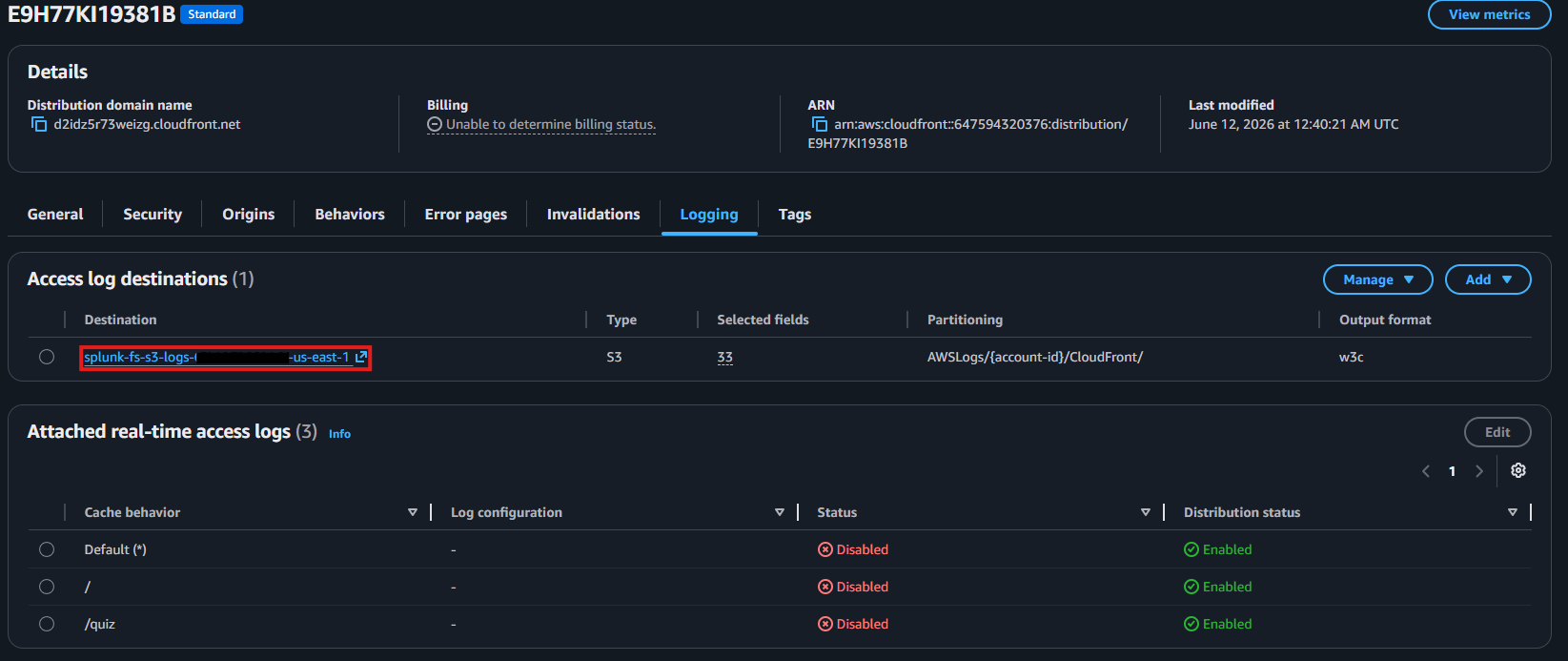
- You should now see a Standard log destination configured for our CloudFront Distribution.
Click on the hyperlink for the destinationas shown in the picture below.
As we have just turned on logs it can take up to around 3-5 minutes for logs to start appearing in your S3 bucket.
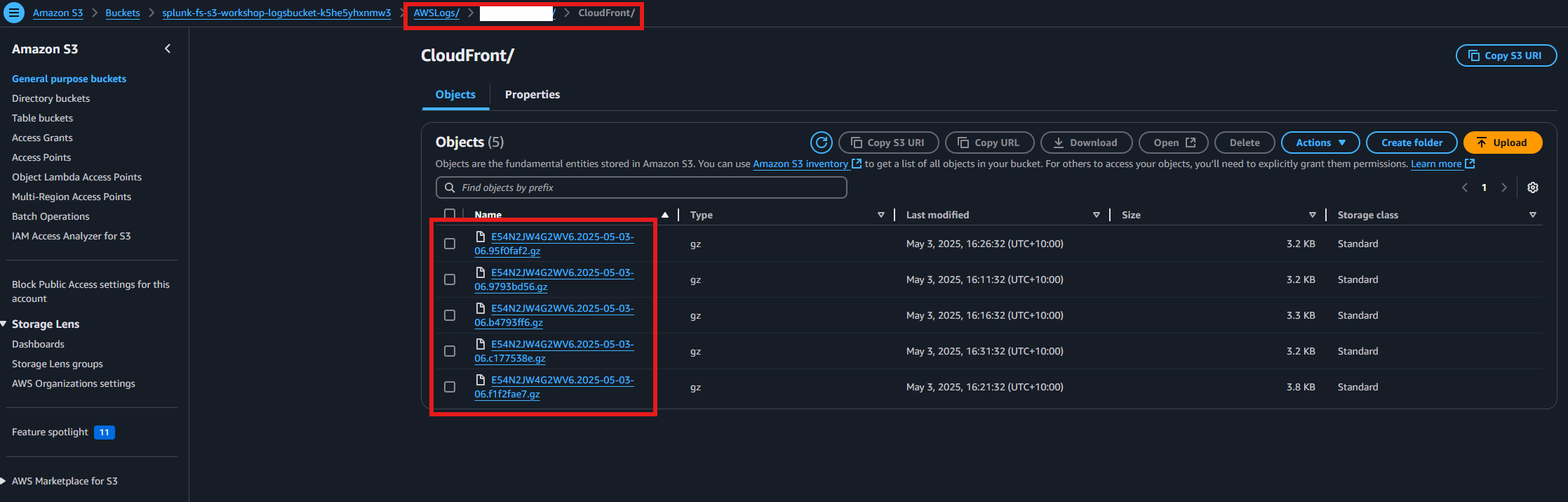
- From the S3 bucket you should see an initial folder of AWSLogs/. Navigate all the way into the CloudFront folder by
selecting each of the folders for AWSLogs, {account-id} and then CloudFront. You should see logs files as shown in the image below.
Congratulations! In this part of the lesson we explored CloudFront access logs and saw them being created in S3. Next we will take a look at our first AWS Glue table.