
Now that we understand more around CloudFront access logs and have seen them being generated in Amazon S3, it is time to explore our first AWS Glue data catalog.
Exploring AWS Glue
- Let's get started by first navigating to the AWS Glue service. In the AWS Console,
search for and select AWS Glue.

AWS Glue at its heart is an AWS Extract, Transform and Load (ETL) service. There are a lot of features and options around this service we will not cover off in this workshop as we are primarily focusing on the Glue Data Catalog capabilities.
- Welcome to the AWS Glue service. As mentioned above we will be focusing on the Data Catalog features of the AWS Glue service. To begin,
selecttheDatabaseslink on the left-hand menuunder Data Catalog.
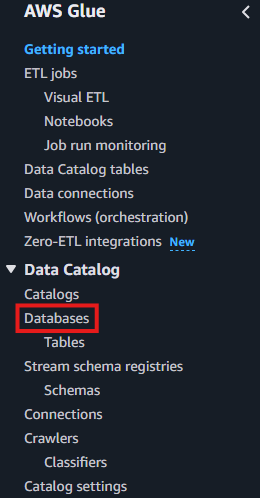
Select the splunk-fs-s3-{account-id} databaselink as shown below.
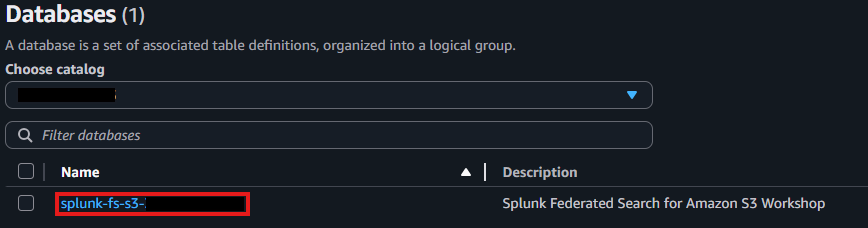
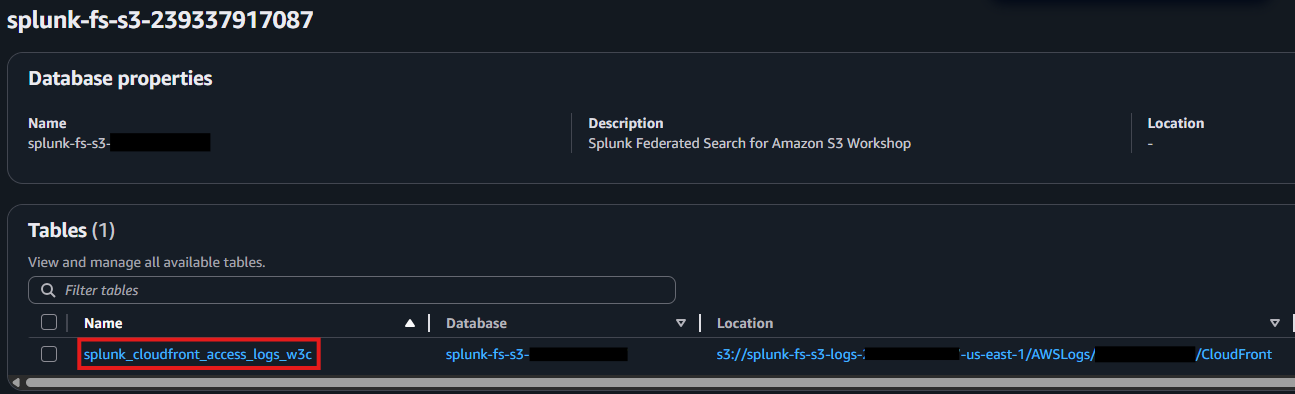
Glue Table Information: You will note with any glue table it shows you high level information of the name, the database its associated with and also the S3 location where the schema is pointing too.
- Now that we are in the database we see the tables associated with the database. At this point in time there is only one, splunk_cloudfront_access_logs_w3c. It's time to explore this table further.
Click the splunk_cloudfront_access_logs_w3c tableas shown in the screenshot below.
- From here there are specific details on the table which was created automatically as part of the lab setup earlier. Let's
click the Schema tabas shown below
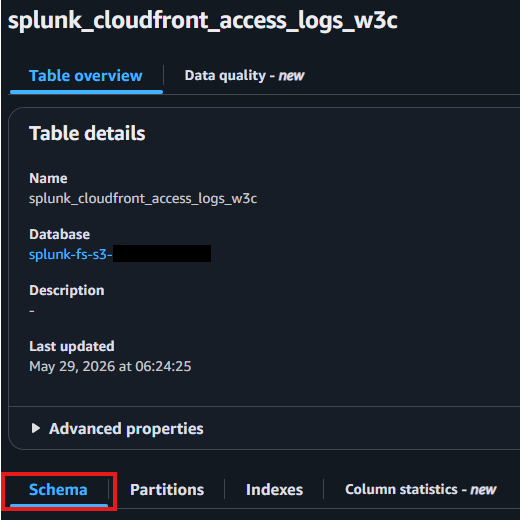
From here you can see important information on the schema structure of the CloudFront Access Logs data. Specifically for w3c format which was the default for the CloudFront Access logs. If another format type was selected, e.g. json, then this schema would be different to match the required json format.
Compare Log to Schema
Let's now compare the schema to the log file itself and see what we notice.
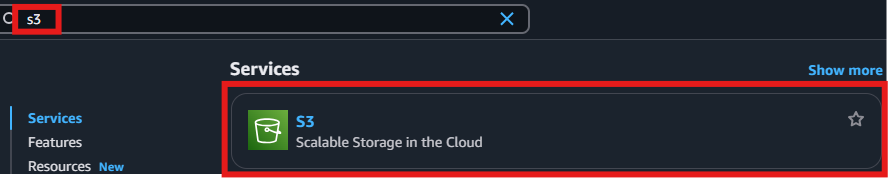
- From the AWS console. Search for and
open in a NEW TAB S3
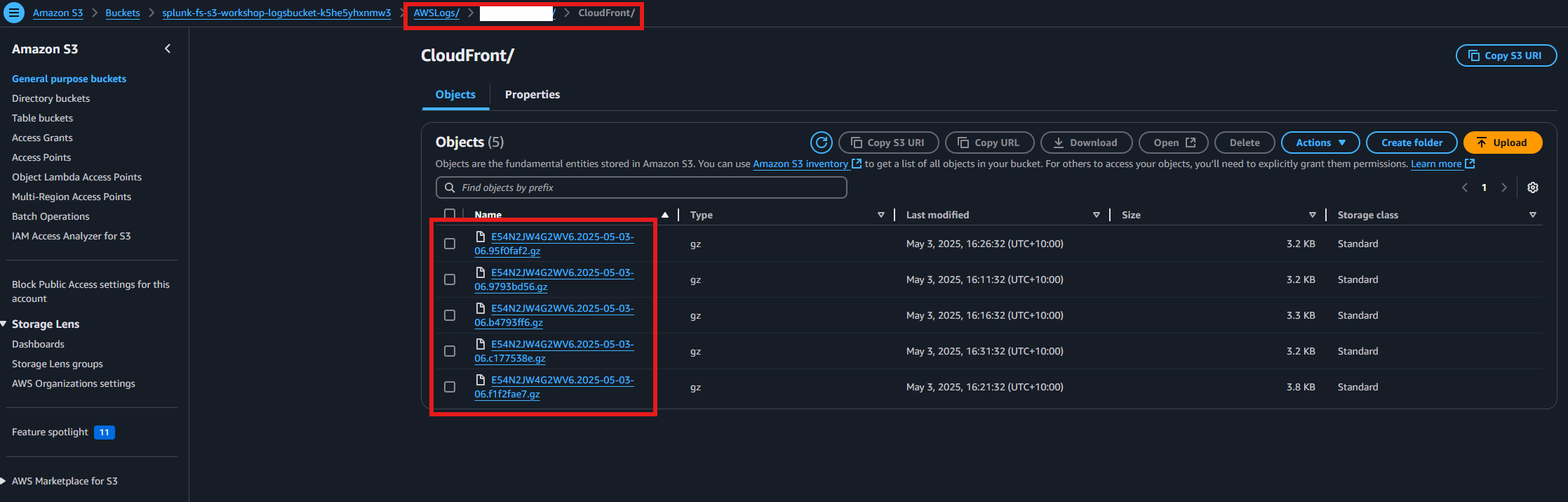
Select the bucket for the CloudFront Access logs(e.g. splunk-fs-s3-logs-{account-id}-{region})- Like before
select the folders until you get to the log folder for CloudFront.See example below
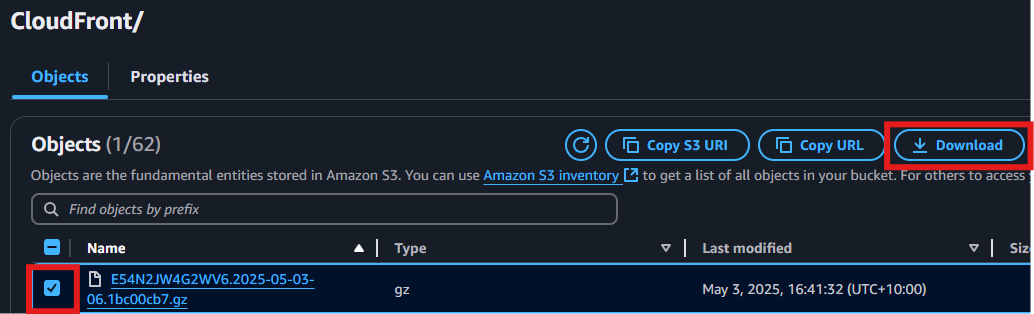
Select the tick box for the first filein the folder, thenselect the Download buttonto download the file to your computer. See example below.
- Using any file browser
go to the location of where the file was downloaded. Open the log filewhich is inside the .gz file you downloaded. It should look like the example image below.
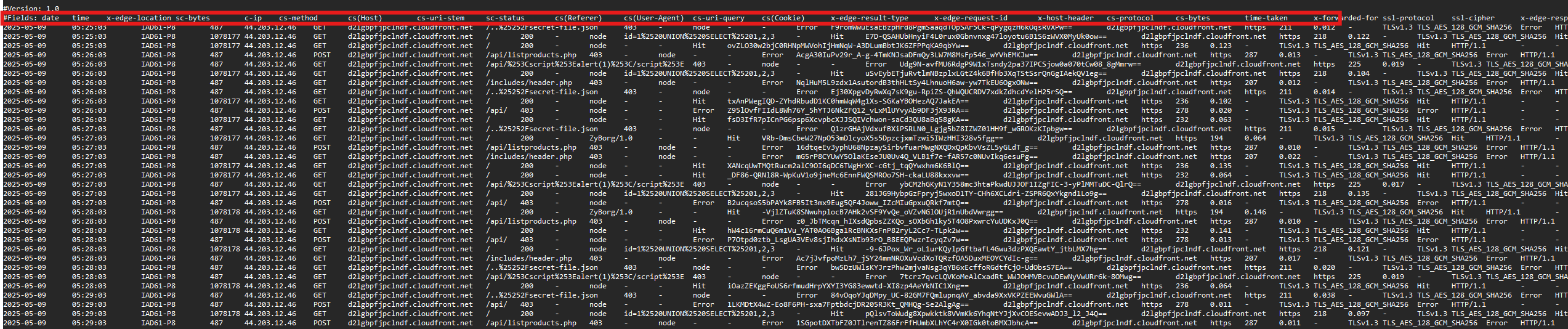
Note the header fields of the column #Fields. Do they look familiar? They should. They are the same structure as the schema in AWS Glue table we looked at earlier.Compare the twoand move on when you are finished.- Before we move on feel free to explore any other information in the table. e.g. the Advanced Properties tab. These tend to include any specific information relevant to the structure of the data.
Congratulations! Now that you are familiar with an AWS Glue Database and schema it's time to create our first Splunk Federated Index and run a basic search from Splunk on the CloudFront Access Logs.